
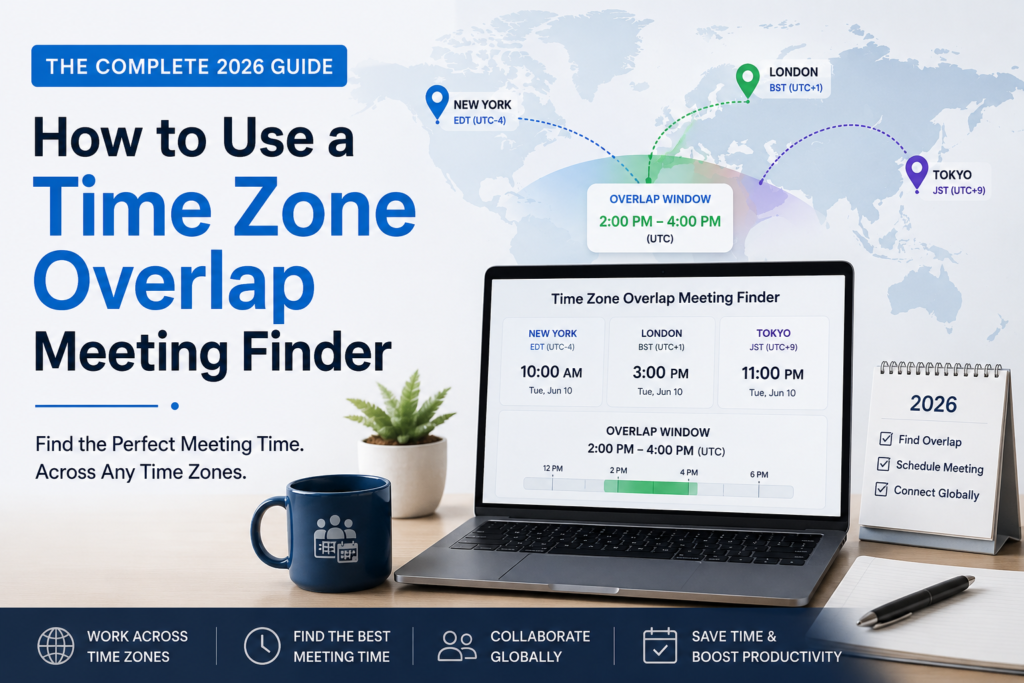
How to Use a Time Zone Overlap Meeting Finder: The Complete 2026 Guide
A practical, step-by-step walkthrough for finding fair meeting times across time zones — built for distributed teams, freelancers, and anyone tired of doing time-zone math in their head at 11 p.m.
If you’ve ever typed “is 9am EST the same as 6pm in Berlin” into a search bar while half-asleep, you already understand the problem this guide solves. Coordinating a single meeting across three or four time zones shouldn’t take fifteen minutes of mental math, three back-and-forth emails, and one very confused teammate who shows up an hour early. That’s exactly the gap a time zone overlap meeting finder is built to close, and once you know how to use one properly, scheduling stops being a chore and becomes a five-second lookup.
This guide walks through exactly how the tool works, how to use it step by step, where most remote teams go wrong, and how to pick meeting windows that don’t quietly burn out the person on the other side of the planet.
01What Is a Time Zone Overlap Meeting Finder?
A time zone overlap meeting finder is a scheduling tool that takes two or more locations, lines their working hours up on a shared timeline, and shows you exactly which hours are awake, reasonable, and workable for everyone involved. Instead of converting each time zone individually — and inevitably getting one of them wrong — the tool does the conversion instantly and highlights the window where every participant’s local time falls inside a sensible working range.
Think of it less as a converter and more as a negotiator. A converter tells you “3pm in New York is 8pm in London.” An overlap finder tells you “here are the four hours where New York, London, and Bangalore are all reasonably available,” which is a completely different — and far more useful — answer.
Overlap = the block of hours where the working days of two or more time zones intersect. A good finder shows this visually, in real time, without forcing you to open a spreadsheet.
02Why Manual Time Zone Math Fails Remote Teams
Manual scheduling breaks down for three reasons, and they compound the more time zones you add to a call.
Daylight saving time is not synchronized globally. The United States, the United Kingdom, and the European Union shift their clocks on different dates, and countries like India, Japan, and most of Africa don’t observe daylight saving at all. A meeting time that worked perfectly in March can quietly shift by an hour in October — and nobody notices until someone misses the call.
Mental math doesn’t scale past two people. Converting one time zone in your head is manageable. Converting four, while also accounting for who’s on a lunch break and who’s already logged off for the day, is where human error creeps in — and it’s usually the newest or most junior person on the call who ends up with the 6am slot because nobody double-checked.
“Business hours” isn’t a fixed global constant. A 9-to-5 in Manila doesn’t map cleanly onto a 9-to-5 in Chicago once you factor in commute culture, family schedules, and the fact that some teams start at 7am and others start at 10am. A proper overlap finder accounts for actual working windows, not just raw UTC offsets.
Teams that repeatedly schedule global calls at inconvenient hours for the same person or region see faster burnout and higher attrition on distributed teams. Fair scheduling isn’t just a convenience — it’s a retention tool.
03How to Use a Time Zone Overlap Meeting Finder, Step by Step
Here’s the exact workflow, using the free Time Zone Overlap Meeting Finder as the reference tool. The same logic applies to almost any overlap finder you use, so this section doubles as a general-purpose playbook.
- Add every participant’s location, not just their time zone abbreviation. Type in the city or region for each person on the call — for example, Austin, TX; London, UK; and Manila, Philippines — instead of just “EST” or “GMT.” Abbreviations get confusing fast (EST vs. EDT, IST for India vs. IST for Israel), and city-based input avoids that ambiguity entirely.
- Set a realistic working-hours range for each person. Most finders default to a standard 9am–6pm window, but real teams don’t all work identical hours. If someone starts early to catch their kids’ school drop-off, or works a later shift by preference, adjust their window before you look for overlap. This one step is what separates a genuinely useful tool from a basic converter.
- Read the overlap bar, not just the numbers. The visual timeline will shade in the hours where everyone’s working windows intersect. Look for the darkest or most clearly marked band — that’s your safest meeting window. If the overlap is thin (say, one hour or less), that’s useful information on its own: it tells you this group may need to rotate meeting times fairly rather than defaulting to the same slot every week.
- Check for daylight saving drift before locking in a recurring meeting. If you’re setting up a weekly or biweekly recurring call, confirm the overlap holds a few months out. A window that works in July might shift once the US or EU changes its clocks in the fall.
- Copy the confirmed time and share it in each person’s local format. Once you’ve found the window, communicate the meeting time in a way that removes any remaining ambiguity — either by sharing a calendar invite (which auto-converts for each recipient) or by explicitly stating each person’s local time in the message.
- Revisit the overlap if the team composition changes. Adding a new hire in a fifth time zone, or losing overlap because someone relocated, means your “default” meeting slot might no longer be fair. Re-run the check any time your team’s geography shifts.
That’s the entire process. What used to take a mental spreadsheet and a Slack thread full of “wait, what time is that for me?” now takes under a minute, and you can bookmark the tool for every future scheduling conversation.
04Real Scheduling Scenarios Where This Tool Earns Its Keep
Time zone overlap tools aren’t just for HR calendars — they solve real, recurring friction points for specific kinds of teams. Here are three situations where the tool changes how a team actually operates.
US ↔ India Engineering Handoffs
A backend team in Austin and a QA team in Bangalore need a short daily sync. Standard US business hours and standard Indian business hours barely touch, so the overlap finder reveals a narrow but workable window in the early US morning that both sides can commit to.
Typical overlap: ~1–2 hrs, early AM CentralUS ↔ Europe Marketing Reviews
A content team split between New York and Lisbon needs a weekly review call. Because the offset is smaller, the overlap finder shows a comfortable mid-morning Eastern slot that lands in the early afternoon for the Lisbon-based team — no early wake-ups required.
Typical overlap: ~4–5 hrs, late morning ETUS ↔ Philippines Support Coverage
A customer support lead in California needs to hand off tickets to a night-shift-friendly team in Manila. The finder helps identify a late-evening Pacific slot that aligns with the Manila team’s normal working morning, avoiding an unfair graveyard shift on either side.
Typical overlap: late evening PT / early morning PHT05Advanced Tips for Finding Fairer Meeting Times
Rotate the “bad slot” instead of assigning it permanently
When three or more time zones are involved, there’s often no window that’s convenient for everyone. Instead of always giving the least convenient slot to the same region, rotate it weekly or monthly. It’s a small gesture that meaningfully improves morale on distributed teams.
Separate “must attend live” from “can watch the recording”
Not every meeting needs full attendance. Use the overlap finder to schedule the smallest possible live session with only the people who truly need to be present in real time, and record it for everyone else. This alone can cut painful early-morning or late-night calls by more than half.
Build a standing overlap reference for your core team
If your team’s locations are fairly stable, screenshot or bookmark your ideal overlap window once, rather than re-checking it every time. Just remember to re-verify it after daylight saving changes twice a year.
Use asynchronous-first agendas for anything outside the overlap
If a topic doesn’t strictly require real-time discussion, move it to a shared doc or async video update instead of forcing a meeting into an inconvenient window just because the topic feels urgent.
06Common Scheduling Mistakes to Avoid
- Assuming “GMT” and “UK time” are always the same. The UK observes British Summer Time for roughly half the year, so it isn’t GMT year-round.
- Ignoring regional daylight saving differences. The US and EU change clocks on different weekends each year, creating a temporary one-hour mismatch that catches teams off guard every spring and fall.
- Defaulting to the scheduler’s own convenient hours. It’s an easy habit to fall into, but it consistently disadvantages the same people over time.
- Forgetting weekends and public holidays differ by country. A Friday might be a weekend day in parts of the Middle East, and a “normal” Tuesday might be a national holiday somewhere else on your team.
- Not double-checking after a recurring invite has existed for months. Team composition changes, and a meeting time that made sense at setup can quietly become unfair later.
07Overlap Finder vs. Spreadsheets and Guesswork
| Factor | Overlap Finder Tool | Manual Spreadsheet | Mental Math / Guesswork |
|---|---|---|---|
| Accounts for daylight saving automatically | Yes | Only if manually updated | Rarely |
| Shows a visual overlap window | Yes | No, numbers only | No |
| Speed to find a workable time | Under a minute | 5–15 minutes | Error-prone, variable |
| Scales past 3–4 time zones | Yes | Gets unwieldy fast | Not practical |
| Requires no setup or account | Yes, free tool | Requires building a template | Yes, but unreliable |
08Best Practices for Async-First, Sync-Sometimes Teams
The most resilient distributed teams don’t try to force every conversation into a live meeting. They treat the overlap window as a scarce, valuable resource and protect it for the discussions that genuinely need real-time back-and-forth — decisions with real disagreement, sensitive feedback, or fast-moving problem-solving. Everything else, from status updates to routine approvals, moves to async formats like shared documents, recorded loom-style updates, or threaded project comments.
Using a time zone overlap finder as part of this workflow isn’t just about scheduling one meeting — it’s about deciding, deliberately, when a live meeting is actually worth spending the overlap on.
Find your team’s meeting window right now
Skip the mental math. Add your team’s locations to the free Time Zone Overlap Meeting Finder and get a clear, visual overlap window in seconds — plus explore more free scheduling and productivity tools built for remote teams.
09Frequently Asked Questions
What is the best way to find a meeting time across multiple time zones?
The most reliable method is using a dedicated time zone overlap tool that lets you enter each participant’s city and working hours, then visually shows where those windows intersect. This removes the guesswork and daylight-saving errors that come with manual conversion.
How far in advance should I re-check a recurring meeting’s time zone overlap?
Re-check any recurring meeting at least twice a year, around the typical daylight saving transitions in March and November, since not every country shifts its clocks on the same date.
Is a time zone overlap finder different from a regular time zone converter?
Yes. A converter simply translates one specific time from one zone to another. An overlap finder compares full working-day ranges across multiple zones and highlights the hours that work for everyone, which is far more useful for actually scheduling a meeting.
What should I do if there’s no good overlap between two time zones?
If the overlap is very thin or nonexistent, consider rotating the inconvenient slot fairly between participants, shortening the meeting to only the essential minutes, or moving the topic to an asynchronous format like a recorded update or shared document instead.
Are time zone overlap meeting finders free to use?
Many are, including web-based tools that require no signup or download. They’re typically designed to be used instantly, directly in the browser, whenever you need to schedule a cross-time-zone call.
Does a time zone overlap finder account for weekends and holidays?
Good tools focus on working-hour overlap by default, but scheduling decisions should still factor in that weekends and public holidays vary by country. Always confirm local working days alongside the hourly overlap, especially for teams spanning the Middle East, Asia, and Western countries.