

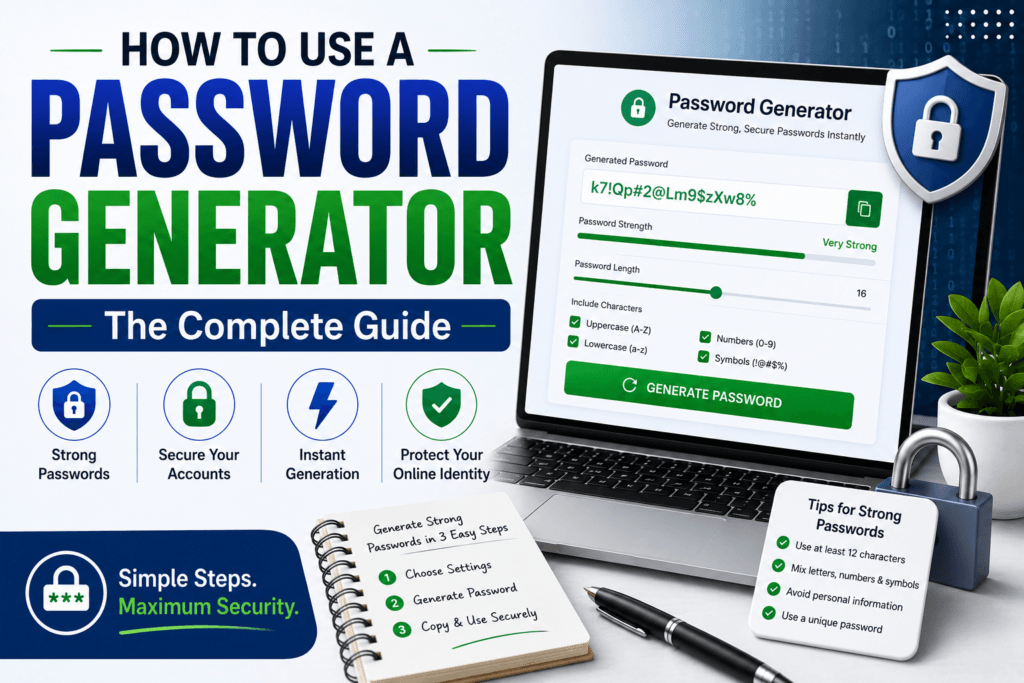
How to Use a Password Generator: The Complete Guide
A practical, no-fluff walkthrough for creating truly random, unbreakable passwords in seconds — plus the settings, mistakes, and habits that actually keep your accounts safe in 2026.
Most password breaches don’t happen because a hacker outsmarted anyone. They happen because someone typed “Summer2024!” into a login box that had already seen that exact password a million times before. A password generator fixes that problem in about three seconds — but only if you know how to use it properly.
This guide walks through exactly how password generators work, how to set one up for different types of accounts, and the small configuration choices that separate a genuinely secure password from one that only looks secure. Every recommendation here follows current password-security guidance, including the direction set by the National Institute of Standards and Technology (NIST) for U.S. digital identity standards.
Try it while you read
Keep a second tab open with a free, no-signup generator so you can follow along with each setting explained below.
Open the Free Password GeneratorWhat Is a Password Generator, Exactly?
A password generator is a small tool that builds a string of characters using a random process instead of a human brain. That distinction matters more than it sounds. Human beings are remarkably bad at being random — when asked to “pick something unpredictable,” most people gravitate toward pet names, birthdays, keyboard patterns like qwerty123, or a word followed by a number and a symbol. Attackers know this, and password-cracking tools are trained on exactly those patterns.
A generator removes the human habit loop entirely. It pulls characters from a pool — lowercase letters, uppercase letters, numbers, and symbols — using a random or pseudo-random process, then assembles them into a string with no memorable pattern, no dictionary word, and no personal connection to you whatsoever. The result is a password that is difficult to guess, difficult to crack through brute force within a realistic timeframe, and impossible to reuse by accident because no two generated passwords look alike.
Why This Actually Matters in 2026
Credential-based attacks remain one of the most common ways accounts get compromised, and the overwhelming majority of successful ones trace back to weak, reused, or predictable passwords rather than some sophisticated exploit. Once one of your passwords leaks in a data breach — and breaches happen constantly across every type of company — automated tools try that same password, and close variations of it, against your email, banking, and shopping accounts within hours. A unique, randomly generated password for every account is the single most effective way to stop that chain reaction before it starts.
How Password Generators Actually Work Under the Hood
Understanding the mechanics helps you make smarter choices about the settings, so it’s worth a short technical detour before the step-by-step section.
A quality password generator relies on a cryptographically secure random number generator (CSPRNG) rather than a simple randomizer. The difference is important: a basic randomizer can be predictable if you know the starting conditions, while a cryptographic one is designed so that no amount of observation lets an outsider predict the next character. Every character in your password is pulled independently from the character pools you’ve selected — for example, if you’ve enabled uppercase letters, lowercase letters, numbers, and symbols, the tool draws from all four pools at random for every single position in the string.
The strength of the result comes down to a concept called entropy, measured in bits. Entropy answers the question: “How many attempts would a computer need to guess this password by brute force?” Every additional character, and every additional character type, multiplies the number of possible combinations. A 8-character password using only lowercase letters has far less entropy than a 16-character password mixing uppercase, lowercase, numbers, and symbols — even though both “look” like passwords at a glance.
A Quick Visual: Length and Complexity vs. Crack Time
Illustrative estimates based on general brute-force principles. Actual crack time depends on the attacker’s hardware and the target system’s security measures.
How to Use a Password Generator: Step-by-Step
Here’s the exact process for turning a blank field into a strong, ready-to-use password in under a minute, using a free online tool like Toolriz’s Password Generator.
Open the generator and set your length
Move the length slider or type in a number. For anything that matters — email, banking, cloud storage — set this to at least 16 characters. Length contributes more to security than any other single setting, so when in doubt, go longer rather than adding more symbol complexity to a short password.
Turn on every character type
Enable uppercase letters, lowercase letters, numbers, and symbols. Each category you switch off shrinks the pool of possible characters, which makes the password easier to guess even if the length stays the same. Leave all four on unless a specific website refuses to accept symbols.
Exclude ambiguous characters if you’re typing it manually
If you’ll ever need to type this password by hand — say, on a smart TV or a game console — toggle on “exclude ambiguous characters” so you’re not squinting to tell a lowercase l apart from a capital I or the number 1.
Generate and check the strength indicator
Click generate. A well-built tool will show a live strength meter — aim for anything labeled “strong” or “very strong” before moving on. If the meter shows anything weaker, increase the length rather than trying to guess a “better” pattern.
Copy it directly into the password field
Use the copy button rather than retyping the password. This avoids typos and means the string never has to pass through your own memory or a note-taking app in plain text.
Save it in a password manager immediately
The moment it’s pasted into the account’s password field, save it in a password manager. A generated 16-character password is not meant to be memorized — its entire security advantage comes from being too random for a human brain to remember, which is exactly why it needs a secure place to live.
Generate a new one for the next account
Never reuse a generated password across two logins. Go back to the generator and create a fresh one for every single account — email, banking, social media, work tools, and anything storing personal or financial data.
Best Password Generator Settings by Account Type
Not every account carries the same risk if it’s compromised, so it’s reasonable to adjust your settings based on what’s actually at stake. Here’s a practical breakdown for U.S. users setting up passwords across the accounts they use most.
| Account Type | Recommended Length | Character Types | Example Pattern |
|---|---|---|---|
| Primary email | 18–20 characters | Upper, lower, numbers, symbols | rK7$mZ2!qLp9@wYt4X |
| Online banking | 18–20 characters | Upper, lower, numbers, symbols | Bq4&tR8!nWz2$vLk6 |
| Work / VPN login | 16 characters | Upper, lower, numbers, symbols | jP3!kM9$eTn7@Rq2 |
| Shopping accounts | 14–16 characters | Upper, lower, numbers, symbols | Wz8!qLk3$mR7Y |
| Streaming / social | 12–14 characters | Upper, lower, numbers | tR9mQ2kW7pL4 |
| Wi-Fi router | 16+ characters | Letters, numbers (avoid symbols some routers reject) | hQ7mTk2pWr9Vn4L |
Password Length and Complexity: What Current Guidance Says
Password advice has actually shifted over the past decade, and it’s worth knowing why. Older guidance pushed for shorter passwords packed with forced complexity — a capital letter here, a number there, a symbol somewhere. That approach backfired in practice, because it nudged people toward predictable substitutions like swapping an “a” for “@” or ending every password with “!1”. Modern guidance from NIST has moved firmly toward prioritizing length over forced complexity, allowing long passphrases, and removing mandatory periodic password changes for accounts that haven’t shown signs of compromise, since frequent forced resets tend to push people toward weaker, more predictable passwords out of sheer fatigue.
The practical takeaway for anyone using a generator: don’t fight the tool by shortening the length to make it “easier.” A random 20-character string copied and pasted from a generator is objectively easier to use correctly than a 9-character password you’re trying to memorize and modify slightly for every website.
Password Generator Do’s and Don’ts
Do this
- Generate a brand-new password for every account, with no exceptions.
- Set length to 16+ characters for anything financial or work-related.
- Store generated passwords in a password manager, not a notes app.
- Regenerate immediately if a site tells you your password appeared in a breach.
Avoid this
- Reusing one strong generated password across multiple sites.
- Manually tweaking a generated password to make it “easier to remember.”
- Saving passwords in an unencrypted spreadsheet or text file.
- Sending a generated password to yourself over email or SMS.
Common Mistakes People Make With Password Generators
Shortening the output to make it memorable. The whole point of a generated password is that it’s not meant to live in your memory. Trimming it down defeats the purpose and reintroduces the exact predictability the tool was designed to eliminate.
Turning off symbols “for simplicity.” Every character type you disable shrinks the total pool of possible combinations. It’s a small decision that has an outsized effect on how quickly a brute-force attempt could succeed.
Using the same generated password for a “test” and a “real” account. A password that started as a placeholder often quietly becomes the permanent one. Generate fresh, every time, for every account.
Not pairing it with two-factor authentication. A generator solves the password problem, not the account-takeover problem entirely. Wherever it’s offered, add two-factor authentication (2FA) — an authenticator app is generally a stronger choice than SMS codes, which can be intercepted through SIM-swapping attacks.
Writing it down somewhere visible. A sticky note on a monitor, a phone’s notes app, or an unlocked spreadsheet defeats the security a generator provides. If you’re not using a password manager yet, a generated password is still safer written on paper and stored somewhere physically secure than typed into an unencrypted digital file.
Password Generator vs. Password Manager: What’s the Difference?
These two tools solve different halves of the same problem, and understanding the split helps explain why you generally need both.
A password generator creates the random string itself — it answers the question “what should my password be?” It typically doesn’t store anything; you generate, copy, and move on. A password manager is where that generated password actually lives afterward — an encrypted vault that remembers every password for every account so you never have to. Most modern password managers include a built-in generator, but a standalone, browser-based generator is often faster for a one-off password, especially on a device where you haven’t installed your manager, like a public or borrowed computer.
The combination is what actually closes the security gap: generate a unique password for every account, then let a manager handle the burden of remembering all of them so you’re never tempted to reuse one out of convenience.
What If You Need a Password You Can Actually Remember?
For the handful of passwords you genuinely need to type from memory — your device’s screen lock or your password manager’s master password — a long passphrase is a stronger and more usable option than a short, symbol-heavy string. Pick four or five unrelated words that mean nothing to each other and have no connection to information about you, then string them together with a couple of numbers and a symbol. Something built from four random, unconnected words reaches meaningful length and entropy while staying pronounceable enough to type from memory, which is exactly the balance a fully random generated string isn’t designed for. Reserve this approach for the one or two passwords you truly must remember, and let the generator handle absolutely everything else.
More free tools worth bookmarking
Beyond passwords, a small toolkit of free browser-based utilities can save you real time — from text and file converters to everyday calculators. Browse the full collection and keep the ones you’ll actually use.
Explore All Free Online ToolsFrequently Asked Questions
Is it safe to use an online password generator?
A well-built browser-based generator that runs the randomization locally in your browser, rather than sending data to a server, is safe to use. Look for tools that don’t require an account or email address and that don’t store or transmit the passwords they generate.
How long should a strong password be in 2026?
For most everyday accounts, 12–16 characters is a solid baseline, and 16–20 characters is recommended for high-value accounts like email, banking, and work logins. Length matters more than cramming in extra symbols, so lean toward longer whenever a site allows it.
Should I include symbols in every generated password?
Yes, whenever the website accepts them. Symbols expand the character pool the generator draws from, which increases entropy and makes brute-force guessing significantly harder. Only disable symbols if a specific site’s password field rejects them.
Can a generated password be hacked?
No password is mathematically impossible to guess, but a sufficiently long, fully random password generated with all character types enabled would take an impractical amount of time to brute-force with current technology. Most real-world breaches happen through leaked databases, phishing, or reused passwords — not through brute-forcing a strong, unique one.
Do I need a different password for every single account?
Yes. Reusing a password means that if it leaks in one breach, every account using it becomes vulnerable at once. A generator makes creating a unique password for each account effortless, since you never have to think one up yourself.
What’s the difference between a password generator and a password manager?
A generator creates the random password itself. A manager stores and auto-fills it later in an encrypted vault. They’re complementary tools, and using them together is the most effective way to maintain strong, unique passwords across every account without relying on memory.
Is a random password generator free to use?
Yes. Reputable browser-based generators, including Toolriz’s password generator, are free with no sign-up required, since the generation happens instantly in your browser without needing to store any data.
The Bottom Line
A password generator removes the single biggest weakness in most people’s online security: the habit of creating passwords a computer can guess in seconds because a human brain created them. Set the length to at least 16 characters, keep every character type switched on, generate a fresh password for every account, and store the results in a password manager rather than your memory. It takes less time than reading this sentence took, and it closes one of the most common doors attackers walk through.
Ready to put this into practice? Generate your first secure password now, or browse the rest of the free online tools available on Toolriz.