

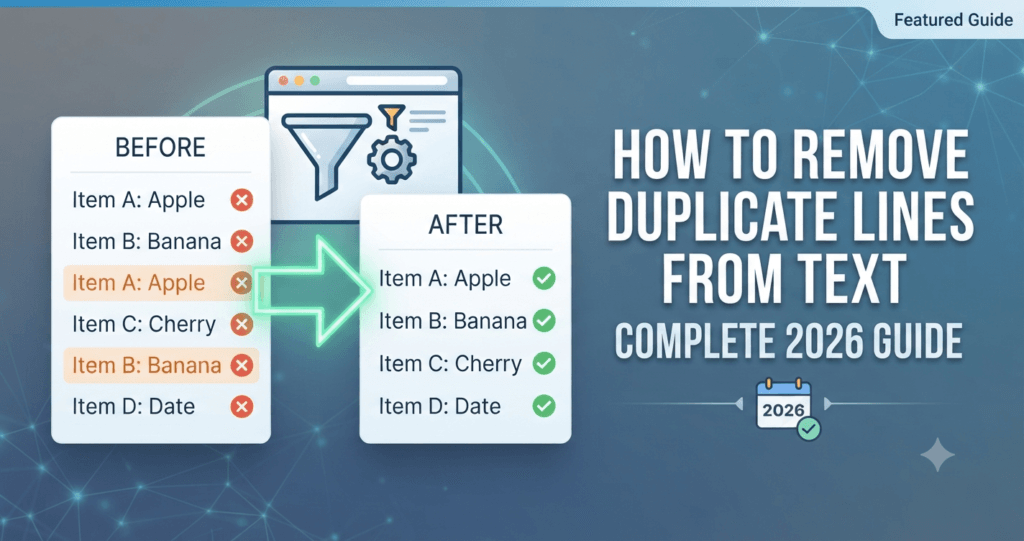
How to Remove Duplicate Lines from Text: Complete 2026 Guide
A clear, step-by-step walkthrough for cleaning up messy lists, logs, email addresses, and keyword sheets in seconds — no spreadsheet formulas, no scripting, no manual scrolling required.
The fastest way to remove duplicate lines from text is to paste the full list into a dedicated duplicate line remover, choose whether the check should be case-sensitive and whether whitespace should be trimmed, then copy or download the cleaned result. The Toolriz Remove Duplicate Lines tool does this instantly in your browser, with no software, no formulas, and no size limit that a typical spreadsheet would choke on.
What’s in this guide
1. What This Tool Actually Does
A duplicate line remover takes a block of text — one item per line — and strips out every repeated line, leaving only unique entries behind. It sounds simple, and for a five-line list, it is. The real value shows up once a list grows to hundreds or thousands of lines: a subscriber email export, a scraped list of URLs, a keyword research dump, a server log file, or a CSV column pasted as plain text. At that scale, spotting duplicates by eye is close to impossible, and that’s exactly the gap this kind of tool fills.
Most versions of this utility, including the free duplicate line remover on Toolriz, run entirely inside your browser tab. You paste or upload your text, pick a couple of simple options, and get a clean, deduplicated list back in less time than it takes to open a new spreadsheet. Nothing needs to be installed, and nothing has to be emailed to a third-party service to be processed.
2. Why It Beats Excel, Notepad++, or Manual Scrolling
There are older ways to tackle this — Excel’s “Remove Duplicates” button, a Notepad++ plugin, or simply scrolling through a file by hand — but each comes with friction that a dedicated online tool skips entirely. Excel needs the data properly pasted into cells first and behaves unpredictably with mixed formatting. Notepad++ requires installing software and knowing which plugin and settings to use. Manual scrolling works for ten lines and falls apart completely at ten thousand.
| Method | Setup needed | Handles large lists | Case-sensitive control | Works on mobile |
|---|---|---|---|---|
| Manual scrolling | None | No — breaks down fast | No | Difficult |
| Excel “Remove Duplicates” | Data must be in cells | Yes, but slow to prep | Limited | Poor |
| Notepad++ plugin | Install software first | Yes | Depends on plugin | No |
| Online duplicate remover | None — paste and go | Yes, easily | Yes, toggle on/off | Yes |
The bigger advantage isn’t just speed — it’s control. A good online tool lets you decide exactly how “duplicate” should be defined for your specific list, which matters more than most people expect once you start working with real-world, messy data.
3. Step-by-Step: How to Use the Tool
Here’s exactly what happens when you open the Toolriz Remove Duplicate Lines tool and clean up a list.
Open the tool — no install, no account
Load the page in any browser, on desktop or mobile. The input box is right there, ready for text, with no sign-up wall in the way.
Paste or upload your list
Copy your list — emails, URLs, keywords, log lines, names, or anything else — and paste it into the input area, with one item per line. Many tools also support uploading a plain text file directly if your list is already saved.
Choose case sensitivity
Decide whether “Email@Domain.com” and “email@domain.com” should count as the same line or two different ones. For most email and username lists, treating them as case-insensitive catches more real duplicates; for code or log analysis, case-sensitive matching is usually the safer default.
Decide how to handle extra whitespace
A line with a trailing space often looks identical to the human eye but reads as a different line to a computer. Turning on whitespace trimming makes sure “example.com” and “example.com ” (with a hidden trailing space) are correctly caught as duplicates instead of slipping through.
Pick which occurrence to keep
Some tools let you choose whether to keep the first or the last occurrence of a repeated line. This matters when order carries meaning — for example, keeping the most recent log entry or the latest version of a repeated address.
Review the cleaned result
The tool instantly shows the deduplicated list, often alongside a count of how many duplicate lines were removed. This quick summary is useful on its own — it tells you at a glance how messy the original list actually was.
Copy or download the clean list
Copy the result straight to your clipboard for pasting elsewhere, or download it as a plain text file to keep as your new, clean master list.
Try it on your own list right now — paste it in and watch the duplicates disappear.
Open the Duplicate Line Remover →4. Pro Tips for Cleaner Results
- Trim whitespace before deduplicating. Hidden trailing spaces are one of the most common reasons “obvious” duplicates don’t get caught.
- Match case sensitivity to your data type. Email lists usually want case-insensitive matching; code, IDs, and log files usually don’t.
- Sort after deduplicating, not before. Removing duplicates first, then sorting alphabetically or numerically, keeps the process predictable and easier to double-check.
- Keep a backup of the original file. Before overwriting your source list, save the raw version somewhere, just in case you need to check what was removed.
- Check the duplicate count before trusting the output. If a “clean” list of 500 lines only removed two duplicates, it’s worth glancing through manually to confirm nothing near-identical slipped past your chosen settings.
- Break very large files into batches if a tool has a size limit. Splitting a huge log file into a few chunks is usually faster than fighting a single oversized paste.
5. Who Actually Needs This Tool?
Removing duplicate lines is one of those unglamorous tasks that quietly saves hours across a huge range of jobs:
Developers & sysadmins
Cleaning duplicate entries out of server logs, config files, and exported ID lists before analysis.
Email marketers
Deduplicating subscriber lists collected from multiple sign-up forms before a campaign send.
SEO professionals
Cleaning keyword research exports pulled from several tools that inevitably overlap.
Data analysts
Prepping raw CSV columns pasted as text before importing them into a proper database or spreadsheet.
Students & researchers
Cleaning up repeated citations or reference lines gathered from multiple sources.
Recruiters & sales teams
Merging contact lists from different spreadsheets without ending up with the same lead three times.
6. Common Mistakes People Make
- Ignoring case sensitivity settings. Leaving the default setting unchanged can either miss real duplicates or wrongly merge lines that were meant to stay separate.
- Not trimming whitespace. Invisible trailing spaces are one of the single biggest reasons a “clean” list still has repeats.
- Deduplicating before checking formatting. Inconsistent formatting, like mixed “http://” and “https://” prefixes on the same URL, can make identical items look different to the tool.
- Skipping the backup step. Once a list is overwritten, it’s hard to check exactly what was removed if something looks off afterward.
- Assuming zero duplicates found means the list is clean. If formatting is inconsistent enough, real duplicates can hide from a straightforward line-by-line comparison — a quick manual skim is still worth it on important lists.
7. Frequently Asked Questions
Is a duplicate line remover free to use?
Yes — most browser-based duplicate line removers, including the Toolriz tool, are free with no account or sign-up required.
Will it work with very large text files?
Browser-based tools can typically handle thousands of lines in a single paste. For extremely large files, splitting the text into a few batches usually processes faster and is easier to review.
Does it matter if my list has extra spaces or blank lines?
Yes. Extra trailing spaces can make identical-looking lines register as different, so enabling a whitespace-trimming option before deduplicating gives more accurate results.
Can I choose whether matching is case-sensitive?
Most tools let you toggle case sensitivity on or off. Turning it off treats “Example.com” and “example.com” as the same line; turning it on keeps them separate.
Does the tool store or upload my data anywhere?
Well-built browser-based text tools process everything locally in the page you’re viewing, without needing to send your list to an external server for processing.
Can I remove duplicates from a CSV file this way?
Yes, as long as the CSV is pasted or treated as plain text with one entry per line. For multi-column CSVs where duplicates should only be checked in one specific column, a spreadsheet tool may still be the better fit.
What’s the difference between removing duplicates and sorting a list?
Removing duplicates eliminates repeated lines, while sorting simply reorders the list alphabetically or numerically. The two are often used together — deduplicate first, then sort the clean result.
Final Thoughts
A messy list is a small problem that quietly grows into a big one — duplicate emails skew campaign numbers, repeated keywords muddy research, and duplicate log lines waste an analyst’s time. Fixing it doesn’t need to be complicated. A dedicated duplicate line remover turns a tedious cleanup job into something that takes seconds instead of an afternoon.
The Toolriz Remove Duplicate Lines tool is built for exactly this: paste your list, set a couple of simple options, and get a clean result back instantly. And if text cleanup is just one item on today’s list, it’s worth exploring the rest of the free online tools on Toolriz for the other small, repetitive tasks that can be handled in a couple of clicks.
Ready to clean up your list? Paste it in and see the duplicates go.
Open the Duplicate Line Remover →