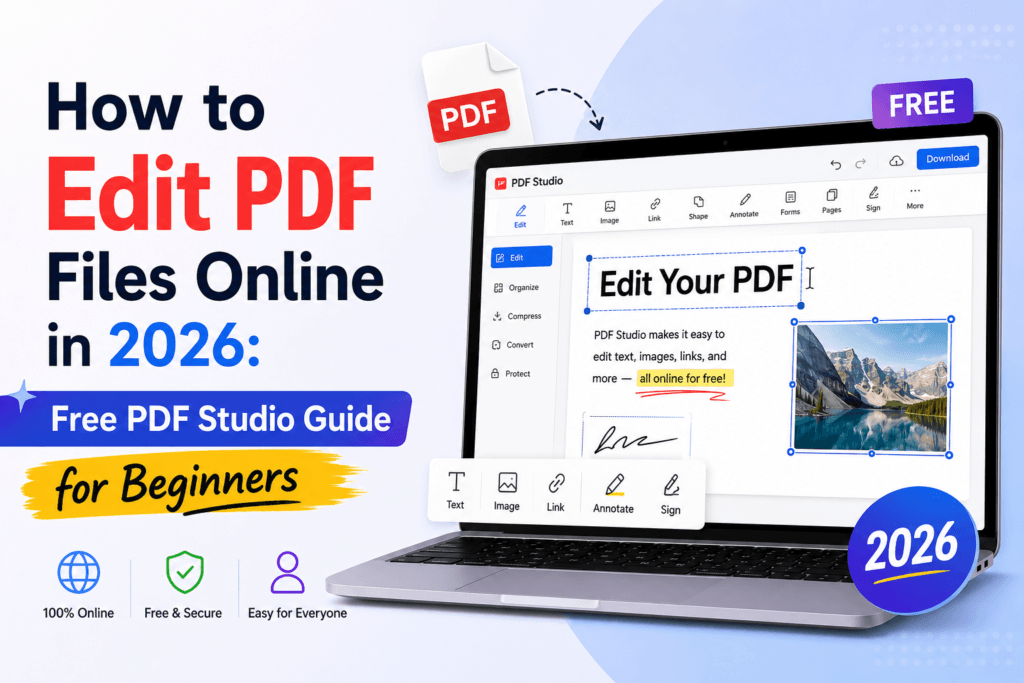
How to Edit PDF Files Online in 2026: Free PDF Studio Guide for Beginners
PDF files are everywhere — resumes, contracts, invoices, school assignments, tax forms, and business reports almost always end up as a PDF at some point. The problem is that PDFs were originally designed to be hard to change. That made sense when the goal was to “lock” a document for printing, but it becomes a real headache the moment you need to correct a single date, add an extra page, or fill in a form before sending it back to a client or recruiter.
The good news: in 2026, you no longer need expensive software to fix a PDF. A free, browser-based tool called PDF Studio lets you open, edit, and re-download a PDF in under two minutes, directly from your phone, tablet, or laptop — no installation required.
Why Edit PDFs Online Instead of Using Desktop Software
A decade ago, editing a PDF meant one thing: opening Adobe Acrobat, waiting for it to load, and possibly paying a monthly subscription you’d only use a handful of times a year. For most everyday tasks, that’s overkill. Here’s why browser-based PDF editing has become the practical choice for most people in 2026:
- No installation, no storage used. Desktop PDF software can take up several hundred megabytes of disk space. Online editors run entirely in your browser tab.
- Works on any device. Whether you’re on a Windows laptop, a Mac, a Chromebook, or even an Android tablet, a browser-based editor behaves the same way everywhere.
- No subscription required for basic tasks. Most people only need to edit a PDF occasionally — paying a recurring fee for that doesn’t make sense.
- Faster for quick fixes. If you just need to change one word, delete a page, or merge two files, opening a heavyweight desktop app is slower than uploading the file straight into a browser tool.
- Easier collaboration. You can edit a file on a shared computer or in a library/co-working space without needing admin rights to install software.
What Is PDF Studio?
PDF Studio is a free, browser-based PDF editing tool built by ToolRiz. Instead of forcing you to download software, PDF Studio runs inside your existing browser — Chrome, Safari, Edge, or Firefox — and gives you a clean, simple editing canvas the moment you upload a file.
With PDF Studio, you can:
- Add, edit, or delete text directly on the page
- Insert images, logos, or a scanned signature
- Reorder, rotate, delete, or extract individual pages
- Merge multiple PDFs into a single document
- Split a large PDF into smaller files
- Compress oversized PDFs so they’re easier to email
- Convert PDFs to and from formats like Word and image files
Because it’s part of the broader ToolRiz online tools collection, you also have one-click access to related utilities — image converters, compressors, and document tools — without needing to bounce between different websites.
Step-by-Step: How to Edit a PDF Online for Free
Here’s the exact process to edit any PDF using PDF Studio, broken down for complete beginners:
- Open PDF Studio. Go to toolriz.com/pdf-studio in any browser, on desktop or mobile.
- Upload your PDF. Click the upload area and select the PDF file from your computer, phone storage, or cloud drive.
- Wait for the file to load. The tool will render every page so you can see exactly what you’re working with — this usually takes just a few seconds.
- Choose your edit type. Select whether you want to edit text, add an image, reorder pages, or use another available tool from the toolbar.
- Make your changes. Click directly on the text you want to change, type your correction, or drag elements like images and signatures into place.
- Review every page. Scroll through the full document one more time before saving, to make sure nothing else needs adjusting.
- Download the updated PDF. Click the download/export button to save the finished file back to your device.
Common PDF Edits Beginners Need (and How to Do Them)
1. Fixing a Typo or Outdated Information
Click on the line of text containing the mistake, select the part you want to change, and type the correction. The font and size automatically match the surrounding text so the page still looks consistent.
2. Adding a Signature
Upload a photo of your handwritten signature or draw one directly using your mouse or finger, then drag it into the signature line on the document.
3. Removing or Reordering Pages
Open the page thumbnail view, then drag pages into a new order, or click the delete icon on any page you want to remove before exporting the final file.
4. Filling Out a Form
If the PDF has fillable fields (like a job application or tax form), click into each field and type your answer. If it doesn’t have built-in fields, you can add text boxes manually on top of the form.
5. Shrinking a File That’s Too Large to Email
Use the compression option to reduce file size while keeping the document readable — useful when an email provider rejects an attachment for being too large.
Free Online Editor vs. Paid Desktop Software
| Feature | Online Editor (PDF Studio) | Paid Desktop Software |
|---|---|---|
| Installation required | No | Yes |
| Works on any device | Yes (browser-based) | Limited to installed OS |
| Cost for basic editing | Free | Often a paid subscription |
| Speed for quick edits | Fast | Slower to launch |
| Best for | Occasional or everyday edits | Heavy, daily professional use |
Is It Safe to Edit PDFs Online?
This is one of the most common questions beginners ask, and it’s a fair one — you’re uploading a document to a server somewhere, after all. Here’s how to edit PDFs online safely:
- Check the tool’s data handling. Reputable tools delete uploaded files automatically after processing rather than storing them indefinitely.
- Avoid uploading highly sensitive originals when possible. For documents containing extremely sensitive data (like full financial account numbers), consider redacting that information first if it isn’t needed for the edit.
- Use HTTPS-secured websites. Always confirm the tool’s address starts with “https://” before uploading anything.
- Log out of shared devices. If you’re editing on a public or shared computer, close the browser tab and clear downloads when you’re finished.
5 Mistakes Beginners Make When Editing PDFs Online
- Editing the wrong version of the file. Always confirm you’re uploading the most recent version before making changes.
- Forgetting to check page formatting after editing. Text edits can sometimes shift surrounding spacing slightly — always scroll through every page before downloading.
- Not compressing large files before emailing. A document that looks fine on your computer might bounce back as “too large to send.”
- Skipping OCR on scanned documents. If you try to edit text on a scanned PDF without OCR turned on, your changes won’t apply correctly because there’s no real text to edit.
- Not keeping a backup of the original file. Always save a copy of the unedited PDF in case you need to start over.
Ready to try it yourself?
Edit, merge, compress, or convert any PDF in minutes — completely free, right in your browser.
Open PDF Studio NowNeed a different file format tool? Browse the full ToolRiz online tools library.
Frequently Asked Questions
How can I edit a PDF file online for free in 2026?
Upload your PDF to a browser-based editor such as PDF Studio, make your changes directly in the browser — editing text, adding images, or reordering pages — and then download the updated file. No software installation or account creation is required for basic edits.
Is it safe to edit PDF files online?
Yes, as long as you use a reputable tool that processes files over a secure (HTTPS) connection and clearly states that uploaded documents are deleted after a short period. Avoid uploading highly sensitive documents to tools without a clear privacy policy.
Can I edit a scanned PDF online?
Yes, but a scanned PDF is technically an image rather than editable text. You’ll need a tool with OCR (Optical Character Recognition) support to convert the scanned content into editable text before making text changes.
Do I need to install software to edit a PDF?
No. Browser-based tools like PDF Studio let you edit, annotate, merge, split, and compress PDF files entirely online, without installing any desktop application.
What is the easiest free tool to edit PDF files in 2026?
PDF Studio is one of the simplest free browser-based options in 2026, offering text editing, image insertion, page management, and file conversion without requiring a paid plan for everyday tasks.